FinCatAI is a full-featured MetaTrader 4 (MT4) Expert Advisor (EA) built as a professional trading terminal.
It includes multi-strategy modules, multi-layer risk control, cloud licensing & member verification,
online updates, and a visual control dashboard for structured execution.
1. Core Modules Overview
FinCatAI is not a single-strategy EA. It is a complete system combining
multi-strategy entry logic, multi-layer risk control, and money management.
You can switch strategies via the parameter “Entry Strategy”, and manage overall exposure using unified risk rules.
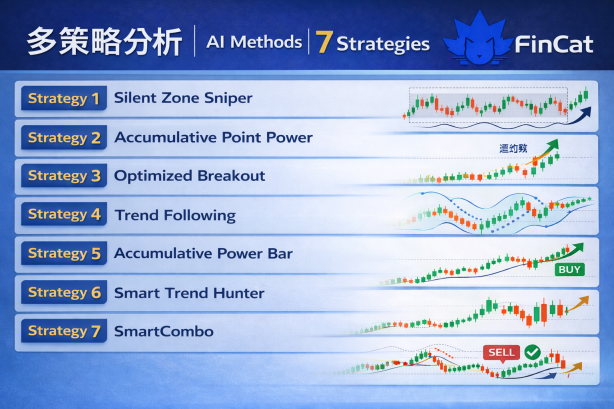
Multi-Strategy Engine (AI Methods|7 Strategies)
Method 1|Silent Zone Sniper: Range/box logic with ADX filtering; trades around defined high/low boundaries.
Method 2|Accumulative Point Power: Trend momentum logic focusing on breakout “power points”.
Method 4|Trend Following: Trend-following approach to capture longer directional legs.
Method 5|Accumulative Power Bar: Price action model analyzing candle reversal strength.
Method 6|Smart Trend Hunter: MACD modes (Aggressive / Standard / Conservative) with ADX-based auto switching.
Method 7|SmartCombo: Trap filtering + pullback breakeven protection to reduce false signals in choppy markets.
Risk & Money Management (Close + Investment)
Close Settings (Exit & Protection)
3 close modes: Free Mode / SL Mode / Hedge Mode.
Profit Pullback Protection (Profits Decrease): 8-tier profit-lock. When profit reaches a target, a pullback triggers proportional profit securing and exit.
Time Exceed Exit: Attempts to exit after exceeding a configured holding time.
Hedge Logic: In drawdown, opens opposite hedge positions with multipliers to attempt recovery of net P/L.
Investment Strategy (Lot Sizing)
Fixed: constant lot size.
Compound: lot size increases with balance growth.
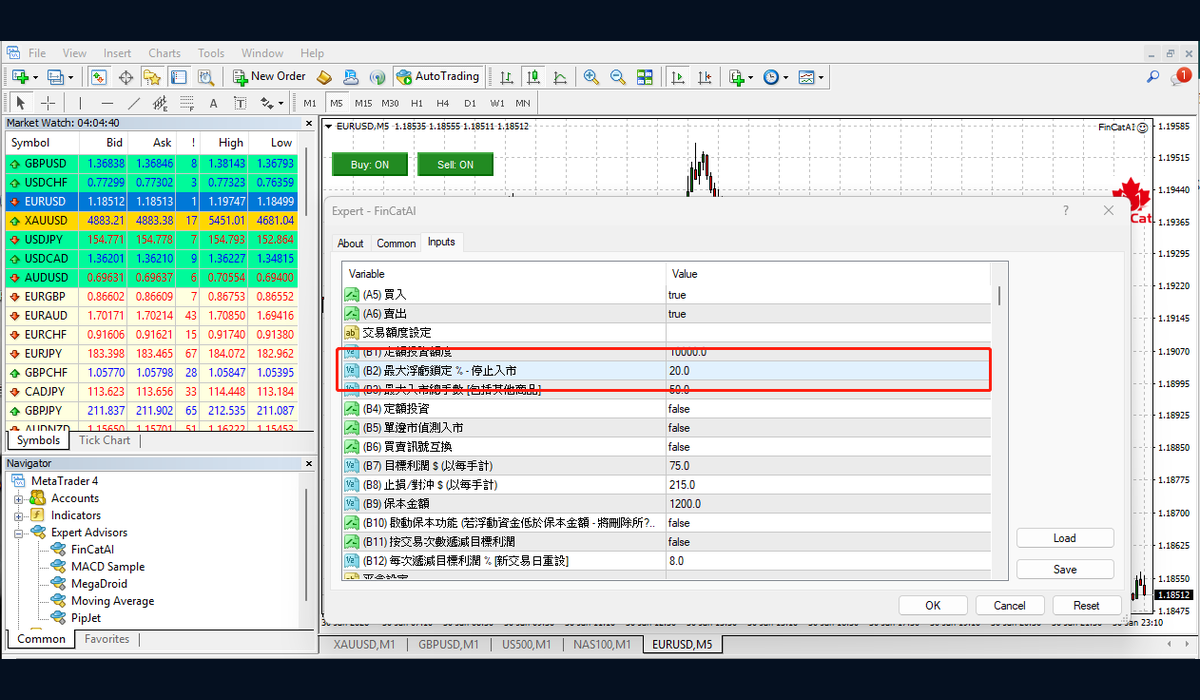
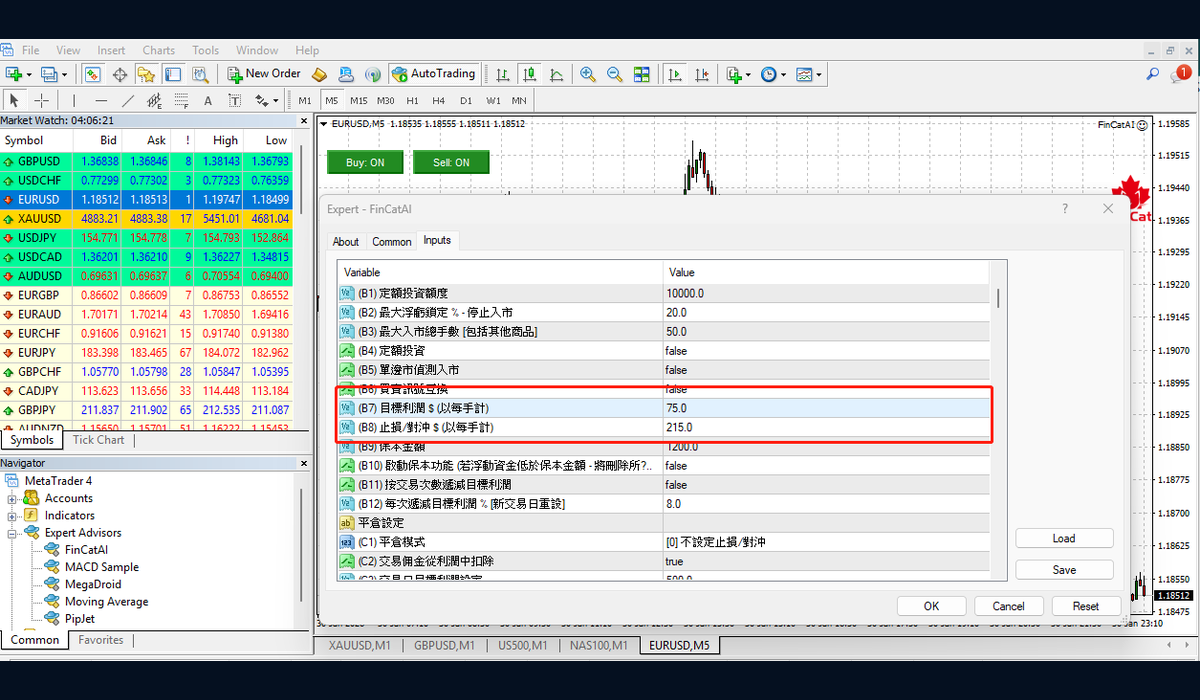
Max Floating Loss Lock: when floating loss exceeds a % threshold, the system pauses new entries to protect remaining equity.
Beginner tip: keep lot size and risk conservative first, then optimize after stability is confirmed.
2. EA Installation
This section walks you through:
Place files → Refresh → Attach EA → Enable AutoTrading → (If needed) WebRequest settings.
Follow the steps below and you should be able to enable the system smoothly.
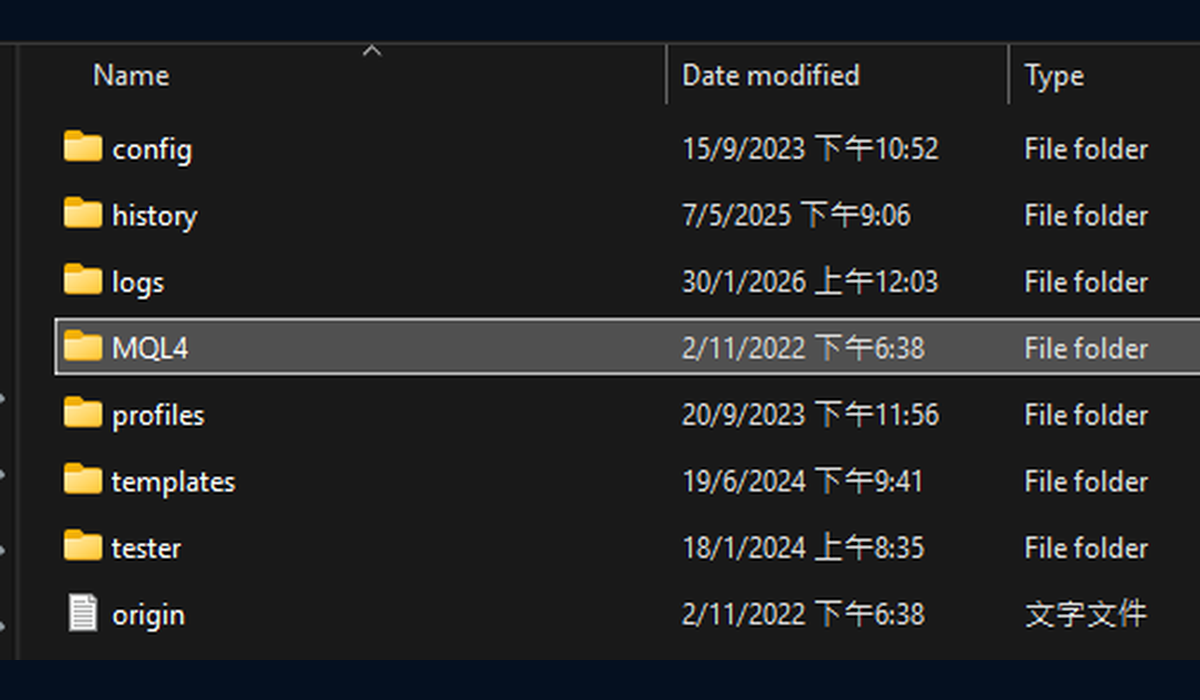
Step 1: Install System Files (Place in the Correct Folders)
Important: WebRequest is used by FinCat on the MT4 side for
membership authorization / validity verification.
It is NOT related to TradingView integration.
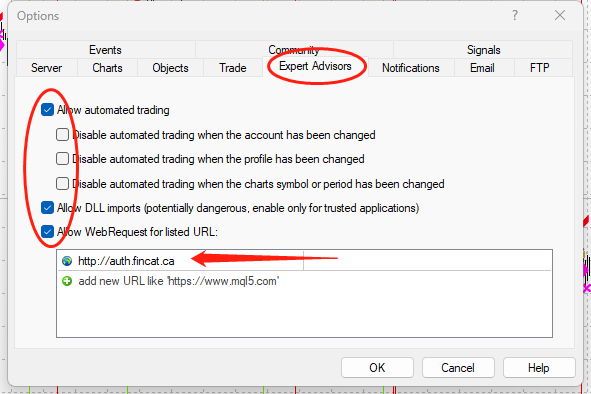
Allowlist Required
Path: Tools → Options → Expert Advisors
✅ Check Allow DLL imports
✅ Check Allow WebRequest
✅ Add: https://auth.fincat.ca
Please add https://auth.fincat.ca to the allowlist
3. TradingView → FinCat Bridge Integration
After creating an Alert in TradingView, the system sends the signal to FinCat Bridge via Webhook,
and the Bridge forwards it to MT4 for execution.
This section provides the fixed Webhook URL and three JSON templates you can copy and use directly.
What is TradingView?
TradingView is one of the world’s most widely used charting and strategy analysis platforms.
You can use Indicators or Strategies to define trading rules.
When conditions are met, an Alert is triggered and sent via Webhook to FinCat Bridge,
and finally executed on MT4.
Important: Risk & Trade Management Is Handled by FinCat EA
FinCat recommends that lot size, spread handling, exit conditions, Take Profit (TP), Stop Loss (SL), smart profit management, and smart stop management be configured entirely inside FinCat EA.
TradingView is responsible only for signal triggering, while FinCat EA manages execution and risk control.
Bridge Webhook URL (Always Use This)
Webhook URL
https://bridge.fincat.workers.dev/
Free Plan Limitation
If you need to monitor multiple symbols or strategies simultaneously, the free TradingView plan
may not provide enough Alert capacity. Consider upgrading if necessary.
Symbol Mapping Required (First Step After Login)
All members must complete symbol Mapping in the "Product Settings" section after logging into FinCat.ca.
The TradingView ticker must match your MT4 broker’s symbol name exactly.
Otherwise, the Bridge cannot recognize the instrument and the EA will not execute trades.
Setup Path: Member Center → Product Settings → Map TV Symbol ↔ MT4 Symbol
Common Mapping Cases
Gold: TV may show XAUUSD; MT4 may use XAUUSDm / GOLD
Bitcoin: TV may show BTCUSD; MT4 may use BTCUSD. / BTCUSDm
Forex: TV EURUSD; MT4 may use EURUSDm / EURUSDpro
(A) Indicator Version | Buy / Sell JSON
If you are using an Indicator, you typically create separate “Buy Alert” and “Sell Alert”.
Ensure correct JSON formatting with standard quotation marks.
If no execution occurs, first verify the Alert was triggered and the Webhook URL is correct.
(B) Strategy Version | Strategy JSON
Applicable to Pine Script Strategies.
When conditions are met and the Alert is triggered, TradingView sends the signal
via Webhook to FinCat Bridge, which then executes it on MT4.
Using {{strategy.*}} variables inside an Indicator (causes empty values or format errors)
Incorrect JSON formatting (use standard quotes and proper commas)
Symbol Mapping not completed (TV ticker does not match MT4 symbol)
Quick Verification (3 Checks)
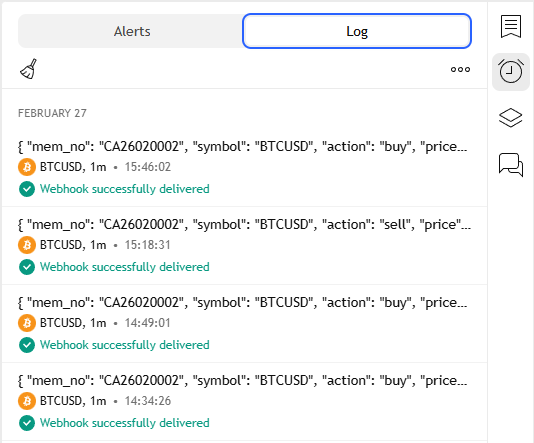
TradingView: Alert shows as triggered (Alerts / Log)
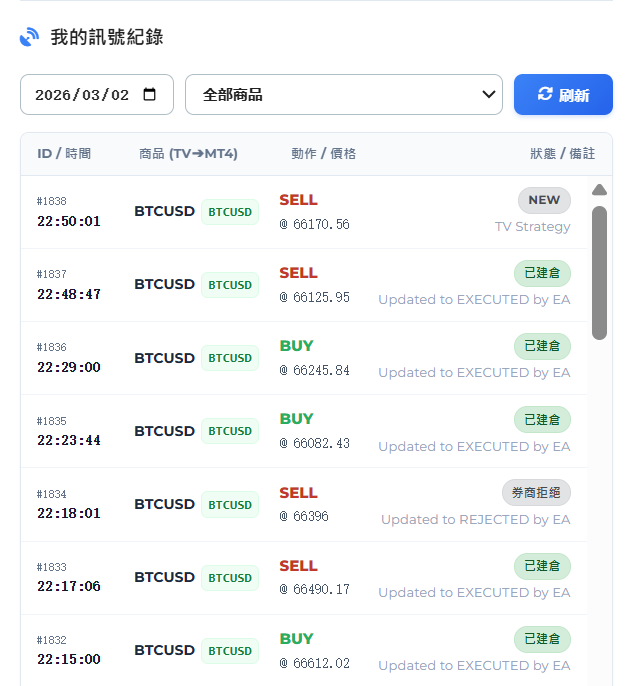
FinCat Website (Member Center): “My Signal Records” shows ID / Time / Symbol (TV➔MT4) / Action / Price / Status
MT4: Experts / Journal shows no errors and EA responds normally
If TradingView triggered but MT4 did not execute: check Mapping, confirm EA is attached,
AutoTrading is enabled, and Bridge/Log received the signal.
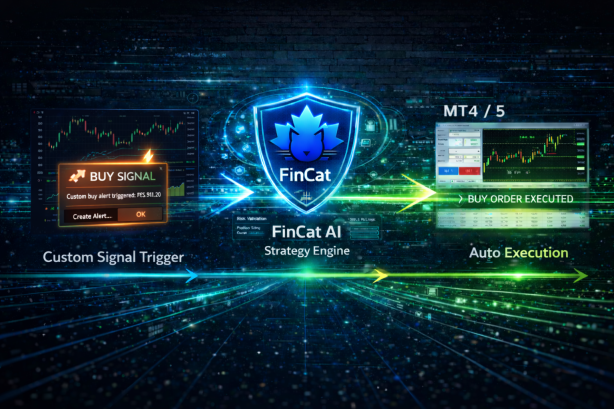
Illustration (Signal & Execution Flow)
TradingView: Signal Trigger & Webhook Sending
MT4: EA Execution & Risk Management (Auto Execution)
4. Install MT4
Installation Flow (Recommended: Broker Official Version)
Download the MT4 installer (.exe) from your broker’s official website.
Run the installer and click Next to complete setup.
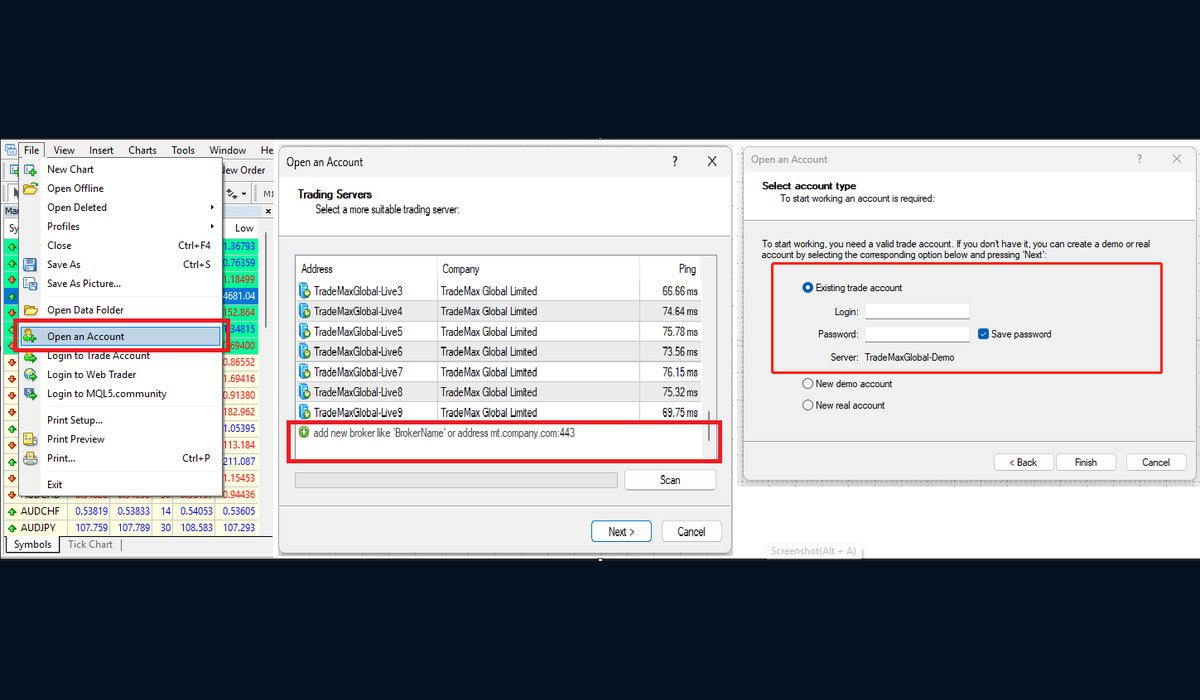
Open MT4 and log in: File → Login to Trade Account.
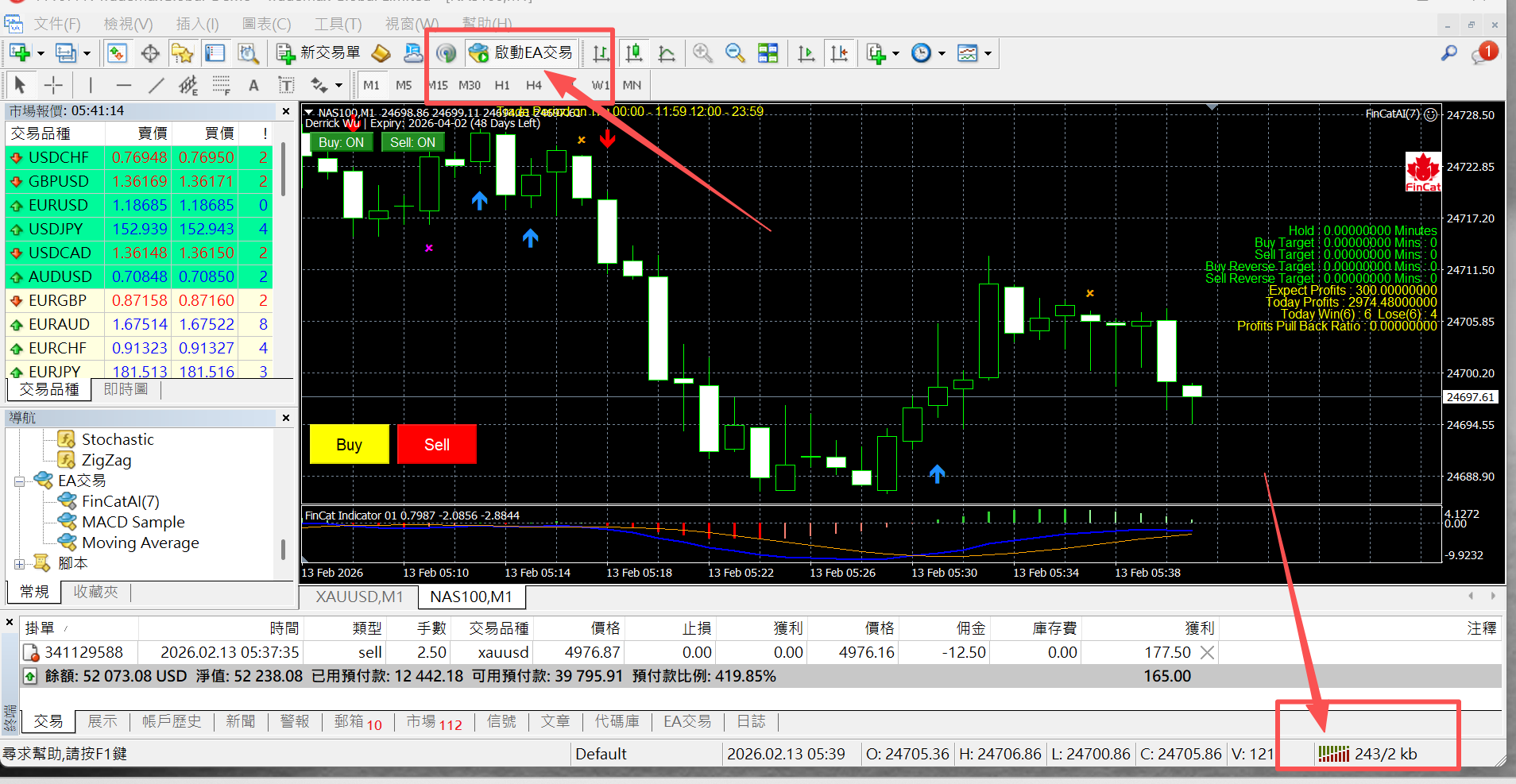
If the bottom-right connection status shows moving numbers, you are connected
Common Issues (Quick Fix)
No Connection / Invalid account: usually wrong server (Demo/Real) or incorrect credentials.
Prices not moving: check network/firewall, or restart MT4.
No symbols in Market Watch: Market Watch → right-click → Show All.
5. Key Features
Beyond strategy and risk modules, FinCatAI includes licensing security, a visual dashboard,
and trading-session control—so the system is manageable, monitorable, and safe to use.
Cloud Verification
The EA periodically connects to verify membership and authorization.
If verification fails: the system can stop trading to enforce usage rules.
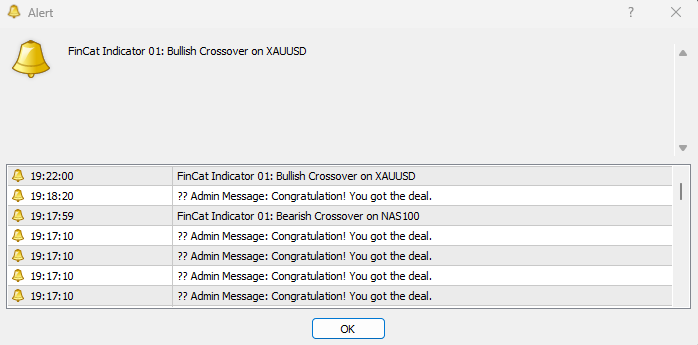
Admin Message: admins can push messages displayed directly on the user’s chart.
Click the image to enlarge
Visual Dashboard
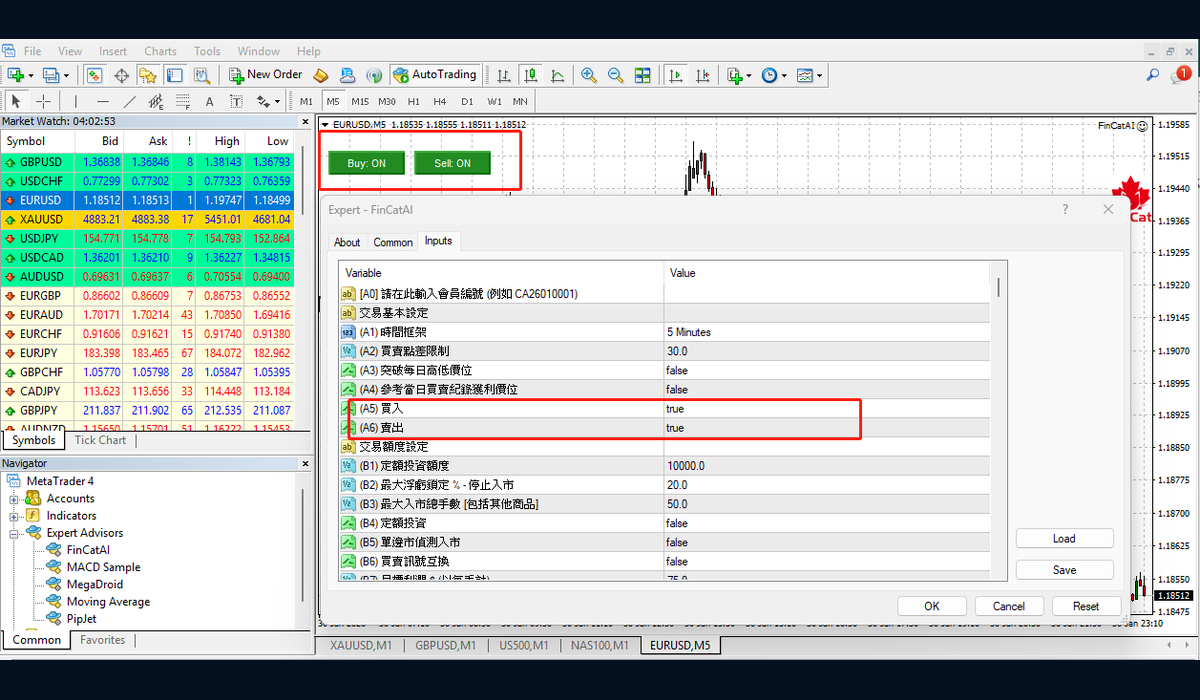
Manual/Auto switch: one-click Buy / Sell toggles for real-time direction control.
Status metrics: daily profit, win rate, holding time, and strategy status.
Visual lines: automatically draws SL / TP / profit-lock lines.
Click the image to enlarge
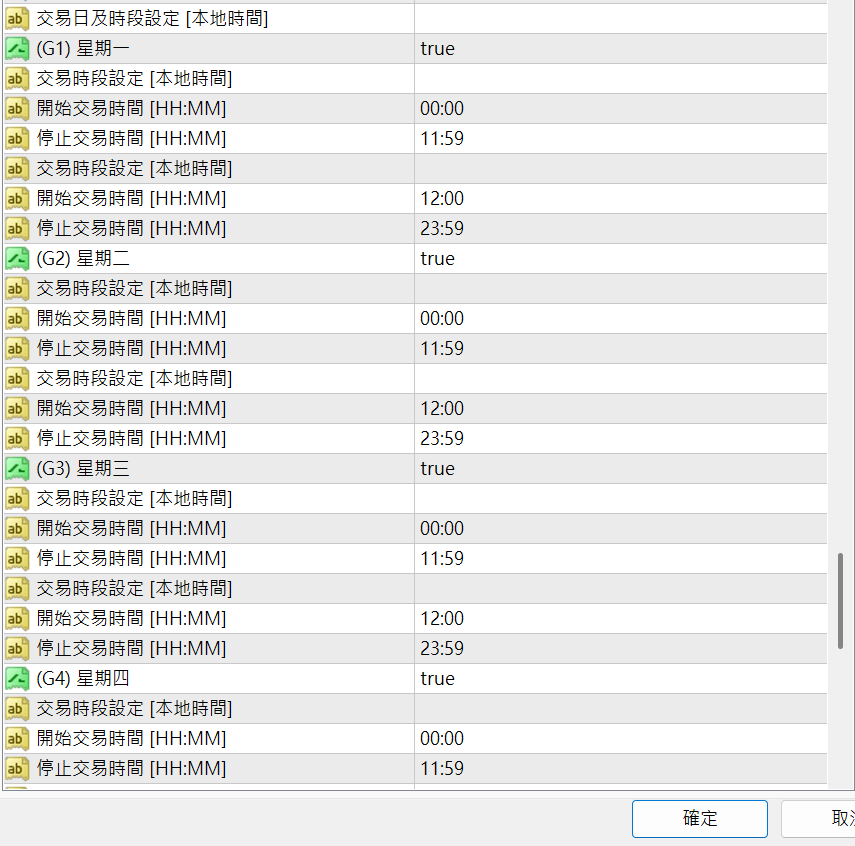
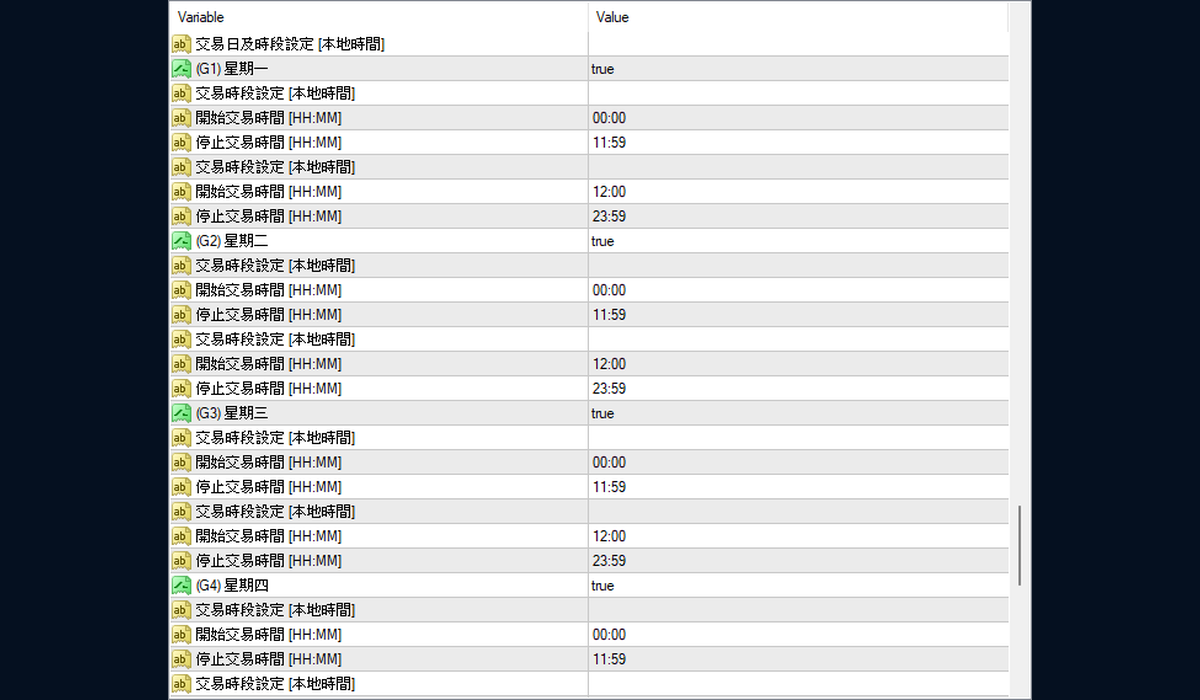
Trading Session Control (7 Days × 2 Windows per Day)
Configure two trading windows per day to avoid news releases, spread widening, or swap-sensitive hours,
and run only during time ranges that best fit your strategy conditions.
Click the image to enlarge
6. Must-Change Settings (Beginner)
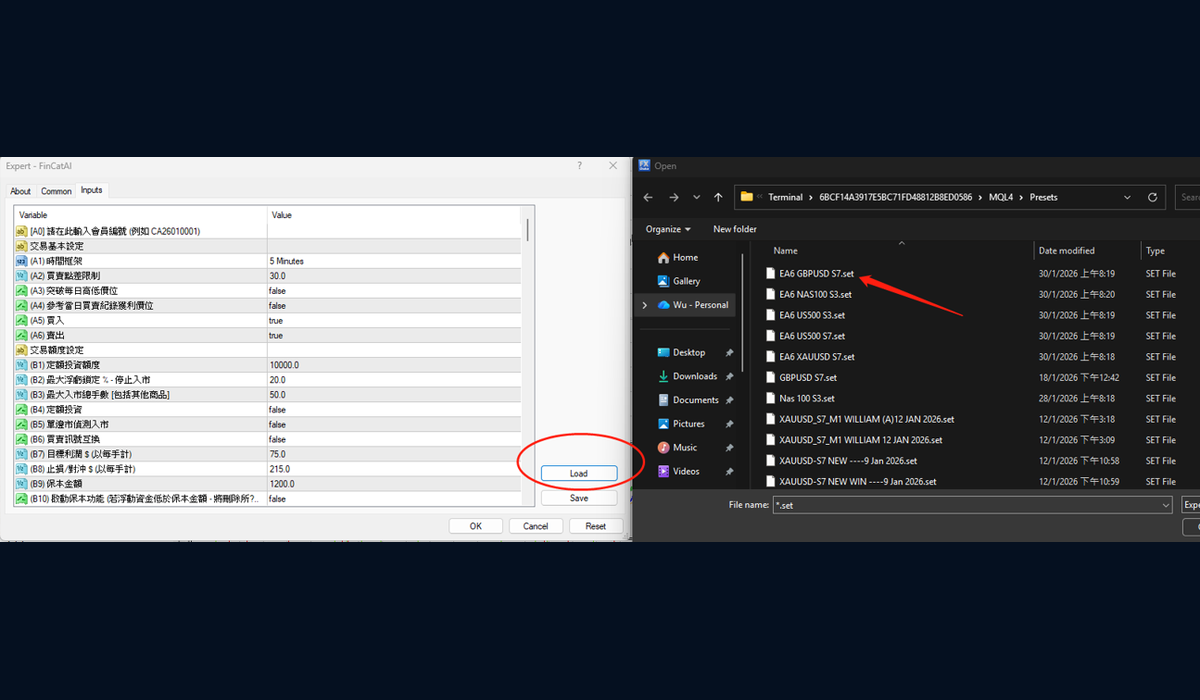
Beginners are recommended to start with the official preset (.set), then adjust gradually.
Below are the most common and most important settings to confirm first.
① Trade Direction (Buy/Sell)
true = ON / false = OFF
② Risk Cap (Max DD)
Stops new entries when floating loss exceeds your defined %
③ Stop Loss & Take Profit (SL/TP)
Defines per-trade risk and target
④ Trading Hours
Set start/stop time windows and day-of-week switches
⑤ Load Preset (.set)
Loading the official preset is the safest way to start